
Desktop
Features
3D Effects
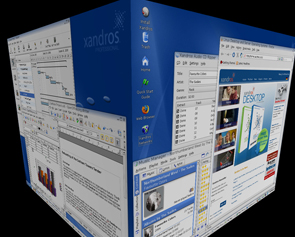
Using Xandros Desktop has never been so much fun!
Xandros Desktop – Professional includes 3D desktop effects that add usability, interactivity and pop to your desktop. Turn your virtual desktops in to a three dimensional cube that can rotate 360 degrees. Create Window transparencies, and quickly toggle between desktops, windows and applications.
Enabling 3D Effects
Xandros Desktop – Professional installs with 3D effects disabled by default. To enable 3D effects, please follow these steps:
- Click the “Lauch” button on the Xandros Desktop – Professional taskbar
- Select “Control Center” and then “Control Center”
- Expand the “Display” tree and click “Video Effects”
- Click the “Enable 3D Effects” button*
-
Reboot your machine
*This button will not be clickable if your computer’s hardware is not supported.
Using 3D Effects
Here is a quick reference to use the Xandros Desktop – Professional 3D effects:
Rotate desktop cube: Ctrl + Alt + left click on wallpaper and drag in any direction
Switch desktops: Ctrl + Alt + Left/Right Arrow
Switch desktops with active window: Ctrl + Shift + Alt + Left/Right Arrow
Flatten cube: Ctrl + Alt + Down Arrow (use left/right arrow to toggle flattened sides of cube)
Tile active windows: Ctrl + Alt + Up Arrow (use left/right arrow to toggle active windows)
Window transparency: Alt + mouse wheel up/down
System Requirements
The 3D effects in Xandros Desktop – Professional are known to work with many graphics chipsets, including most from ATI and Intel. NVIDIA chipsets are known to not currently support Xandros 3D effects. The following chipsets are known to work with Xandros 3D effects:
- Intel Centrino and Centrino Duo Processors
- ATI Radeon 8500 and later AGP or PCI Express graphics products
- ATI FireGL 8700 and later products
Technology Preview
Xandros Desktop – Professional 3D effects is a technology preview. While Xandros has applied its traditional rigorous testing and QA processes to this functionality, it is still immature and may cause your desktop to become unstable. If your desktop becomes unstable, please return to the Display –> Video Effects in the control center to disable 3D effects.
Get Xandros Desktop
Xandros Desktop Professional with applications, tools and support costs $99.99.
Click here ».
Testimonials
Screenshots
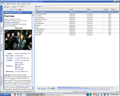
Organize and play your favorite songs
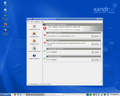
Xandros Security Suite

Surf the Web with Firefox